Excel Habit Trackers That Actually Work (Matched to Your Excel Version)
Habit tracker Excel: check whether Microsoft 365, Mac, or an older Excel version supports the features you need before choosing a template.
By Ultimate Habit Tracker by Cosmo Suite · Editorial policy
Published · 8 min read
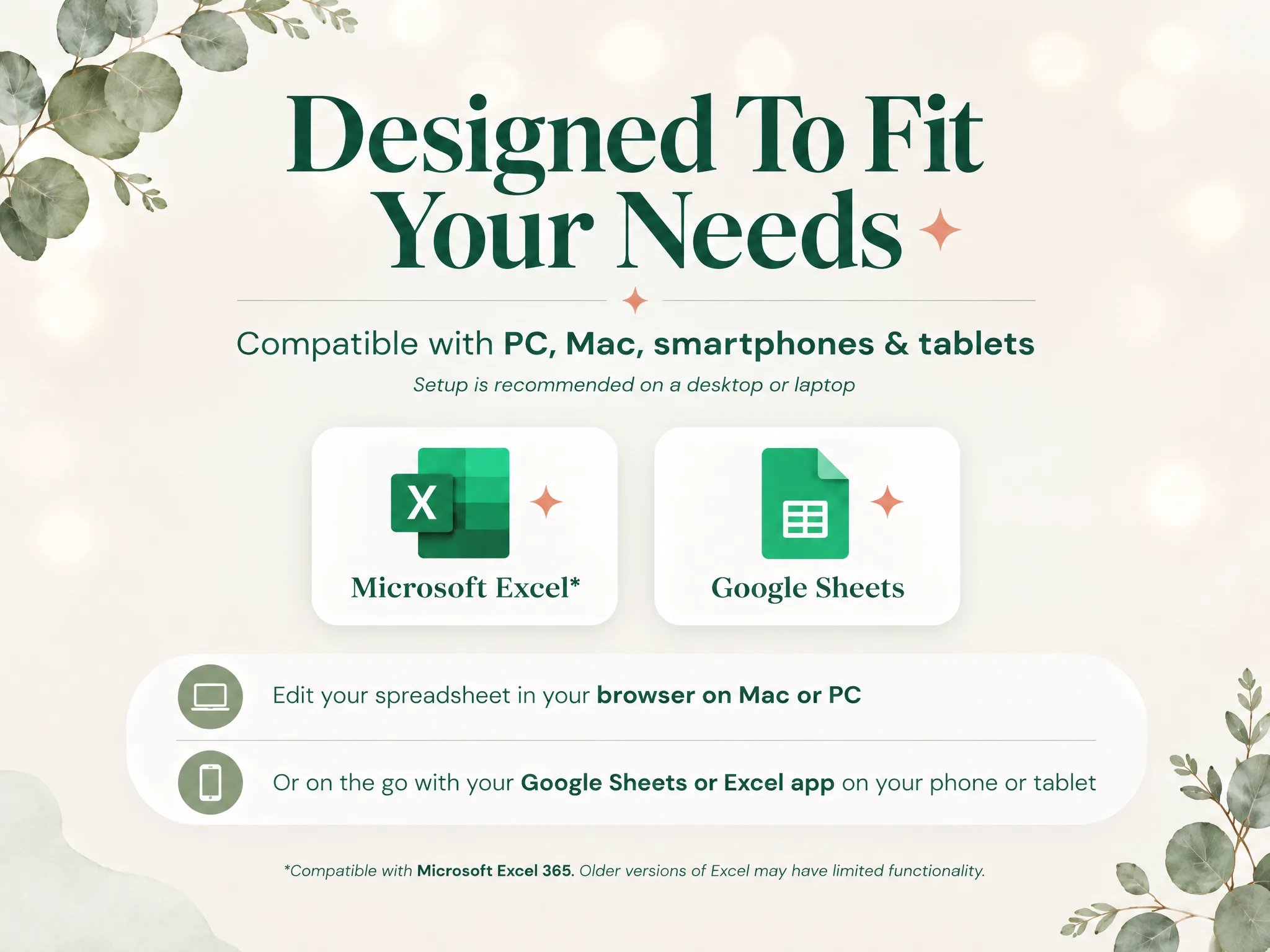
An Excel habit tracker is a worksheet that records habits in a grid and calculates progress from check-off values. It can be a calm place to track a few habits, or a sheet that stops working when one menu item is missing. The difference often starts with the version of Excel you have.
The short answer: check your exact Excel version, then test the workbook's checkbox, monthly total, and dashboard in a copy before you fill in a month. Microsoft's current help page documents in-cell checkboxes for Excel for Microsoft 365 on Windows and Mac. It does not establish that the same command is available in every older or one-time-purchase edition.
This guide shows you what to check, how to keep the month visible after a missed day, and when another format may be easier. The table separates what Microsoft documents from what you still need to test in your own workbook.
What a Missed Day Does to Your Score
A missed day can interrupt a streak without erasing the rest of the month. A streak counts consecutive check-offs. A month score counts the check-offs across the full month. If you watch only the first number, one empty cell can make a mostly complete month look like a reset.
For a worked example, imagine one daily habit over a 31-day month. You check it off on 30 days and leave one day empty. The month score is =30/31, or about 97%. A month score is the share of planned days when you checked off the habit. A classic streak would be interrupted at that empty day, even though the other 30 boxes remain checked. These are example numbers for explanation, not a product test or user data.
A tracker should make both views easy to read. The streak tells you how long the current run has lasted. The month score keeps the completed days in view.
Excel Habit Trackers at a Glance
Choose a habit tracker by checking the Excel release and the workbook features separately. Microsoft's current checkbox instructions cover Microsoft 365 for Windows and Mac. Its file-format and compatibility guidance explains why an .xlsx file opening successfully does not guarantee every interactive feature will behave the same.
| Excel environment | What the current documentation confirms | What to check in your copy | Best for |
|---|---|---|---|
| Excel for Microsoft 365 on Windows | Microsoft documents Insert > Checkbox for Excel for Microsoft 365 | Test the workbook's formulas and dashboard | People who want native in-cell checkboxes |
| Excel for Microsoft 365 for Mac | Microsoft's checkbox page includes Microsoft 365 for Mac | Test the exact workbook in the Mac app you use | Mac users with Microsoft 365 |
| Excel 2024 or 2021 | Microsoft lists .xlsx support, but its checkbox page does not list these editions |
Confirm the checkbox command and test the workbook | People with a one-time Office edition |
| Earlier Excel releases | Microsoft says some features may be unavailable in earlier versions | Run Compatibility Checker on a duplicate | People keeping an older installation |
The last column is a starting point, not a guarantee. An .xlsx file can open while a particular control, formula, or dashboard element still differs. Your version label and a short test tell you more than the file extension alone.
If you want the workbook already arranged, see the Excel and Google Sheets habit tracker options.
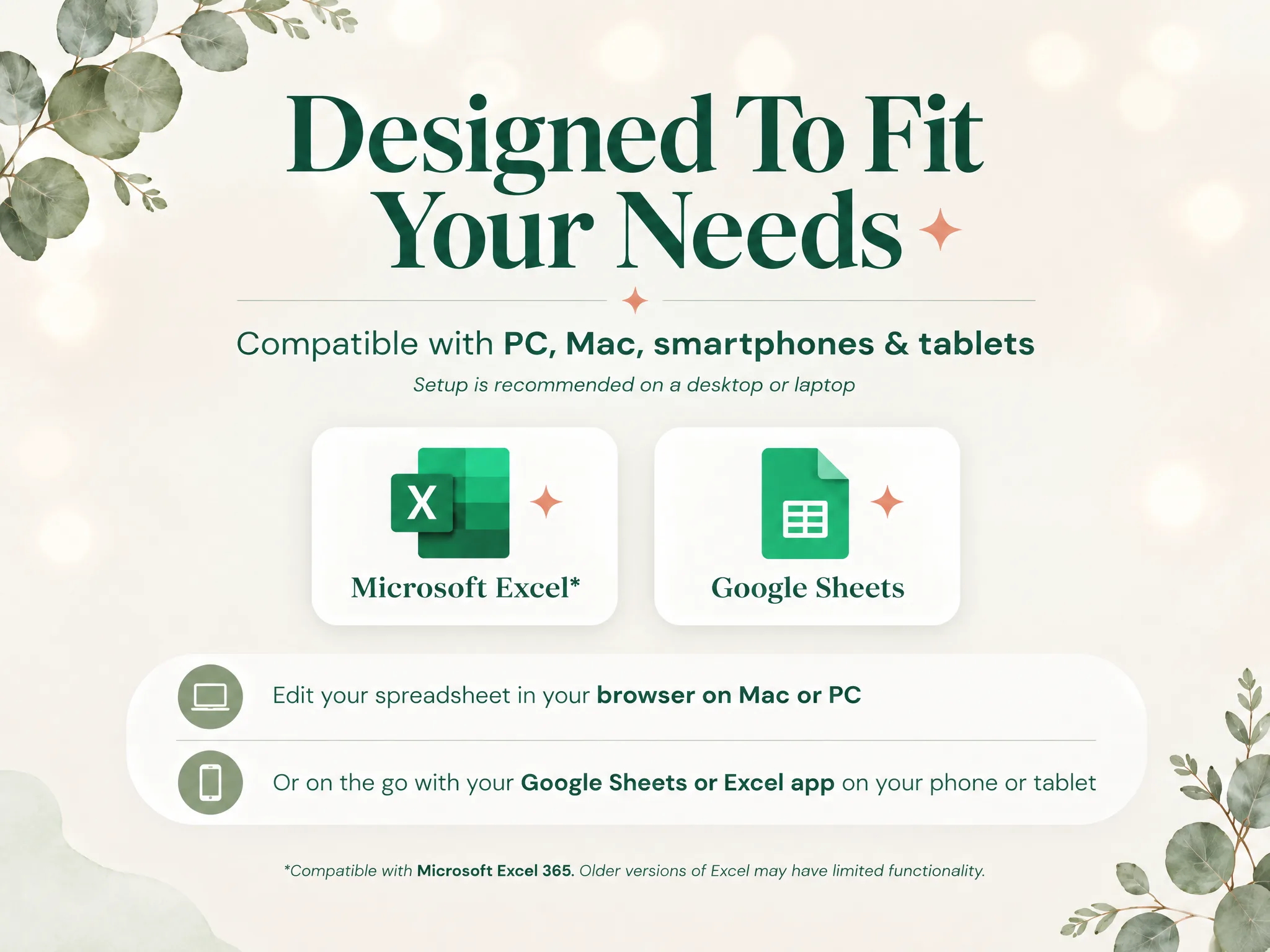
This is the product's published compatibility graphic. It summarizes the stated target and caveat; it is not a result from testing the workbook in each Excel release.
Which Excel Versions Have In-Cell Checkboxes?
Microsoft's current instructions list Excel for Microsoft 365 and Excel for Microsoft 365 for Mac. An in-cell checkbox is a checkbox control placed directly in a worksheet cell. In those apps, select a range and choose Insert > Checkbox. Microsoft says a checked cell has the value TRUE, an unchecked cell has FALSE, and formulas can use those values.
That detail matters because a checkbox is both a visible control and a cell value. A formula can count the value, while the checkbox gives you a quick way to record a check-off. If your version does not show the documented command, do not assume that a drawn box or an older form control will work with the same formulas.
The exact menu can vary with app version and update channel. To find your release, open Account or About in Excel, then compare it with Microsoft's instructions for checking your Office version. For checkbox steps, see Using check boxes in Excel, which specifies its supported Microsoft 365 apps.
Test a Habit Tracker Before You Fill It In
Test a duplicate before you enter a month of check-offs. A four-part check can catch a missing control, a total that does not update, or a dashboard that does not reflect the grid.
- Confirm your app. Note the Excel product and version shown in Account or About. Keep the workbook's original file unchanged.
- Check one box. If the sheet uses native checkboxes, confirm that the box changes state. Microsoft's documented checkboxes pass
TRUEorFALSEto formulas. - Check one total. Change a single box and see whether the monthly count or percentage changes. If it does not, stop and inspect the formula or the workbook's instructions.
- Check the summary. Look at the dashboard or summary tab, then save, close, and reopen the duplicate. Confirm the value is still there.
This is a user-side check, not a compatibility certification. It does not prove that every workbook feature works in every release. It helps you notice a problem before you have spent time setting up the full tracker.
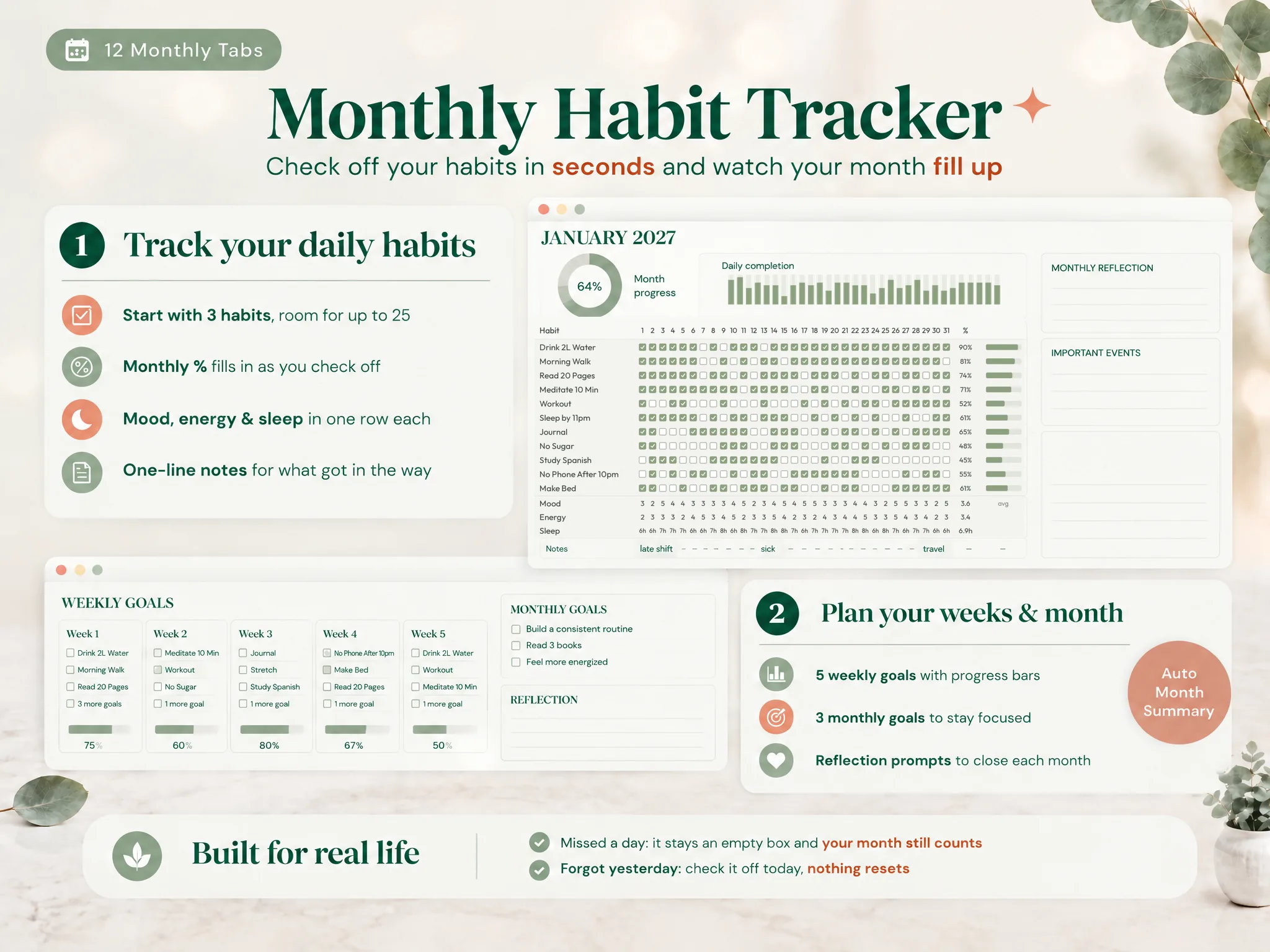
The image shows a product preview, not a live test in Excel 2024, 2021, or an older release.
How Do You Build a Basic Habit Tracker in Excel?
Start with a simple grid: put one habit on each row and one day in each column. In this example, dates go in B1:AF1, and the first habit's checkboxes or TRUE/FALSE values go in B2:AF2. Shorter months use fewer day columns.
- Add the days. Put the dates for the month across row 1. Each day gets one column.
- Add habits. Write one habit per row in column A. Start with a small set so the sheet stays quick to update.
- Record check-offs. In Microsoft 365, insert in-cell checkboxes in the day cells. For another Excel edition, use a value or checkbox method that works in your version.
- Count completed days. Put this formula at the end of the first habit row:
=COUNTIF(B2:AF2,TRUE)
- Show the month score. Divide completed check-offs by the number of dated cells:
=COUNTIF(B2:AF2,TRUE)/COUNTA(B$1:AF$1)
Format the result as a percentage. If the month has 30 days, the final day column is AE; adjust both formulas to use B:AE. Microsoft documents that checked cells contain TRUE, which the count formula uses. The percentage is a worked example, not a test of the Ultimate Habit Tracker workbook.
What Might an Older Excel Version Limit?
An older Excel release may open the workbook but still have a feature difference. Compatibility Checker is Microsoft's tool for finding features or information that may not be available in an earlier version. Microsoft also warns that saving to another format can change formatting, data, or features. Its Excel file formats guide lists supported formats by release and notes that some workbook elements may change when you convert files.
In Excel, open File > Info > Check for Issues > Check Compatibility. Microsoft says you can choose which versions to include and inspect each reported issue. The menu may vary by release, so use the help steps for your own app if the labels differ. Do this on a copy and keep the original untouched.
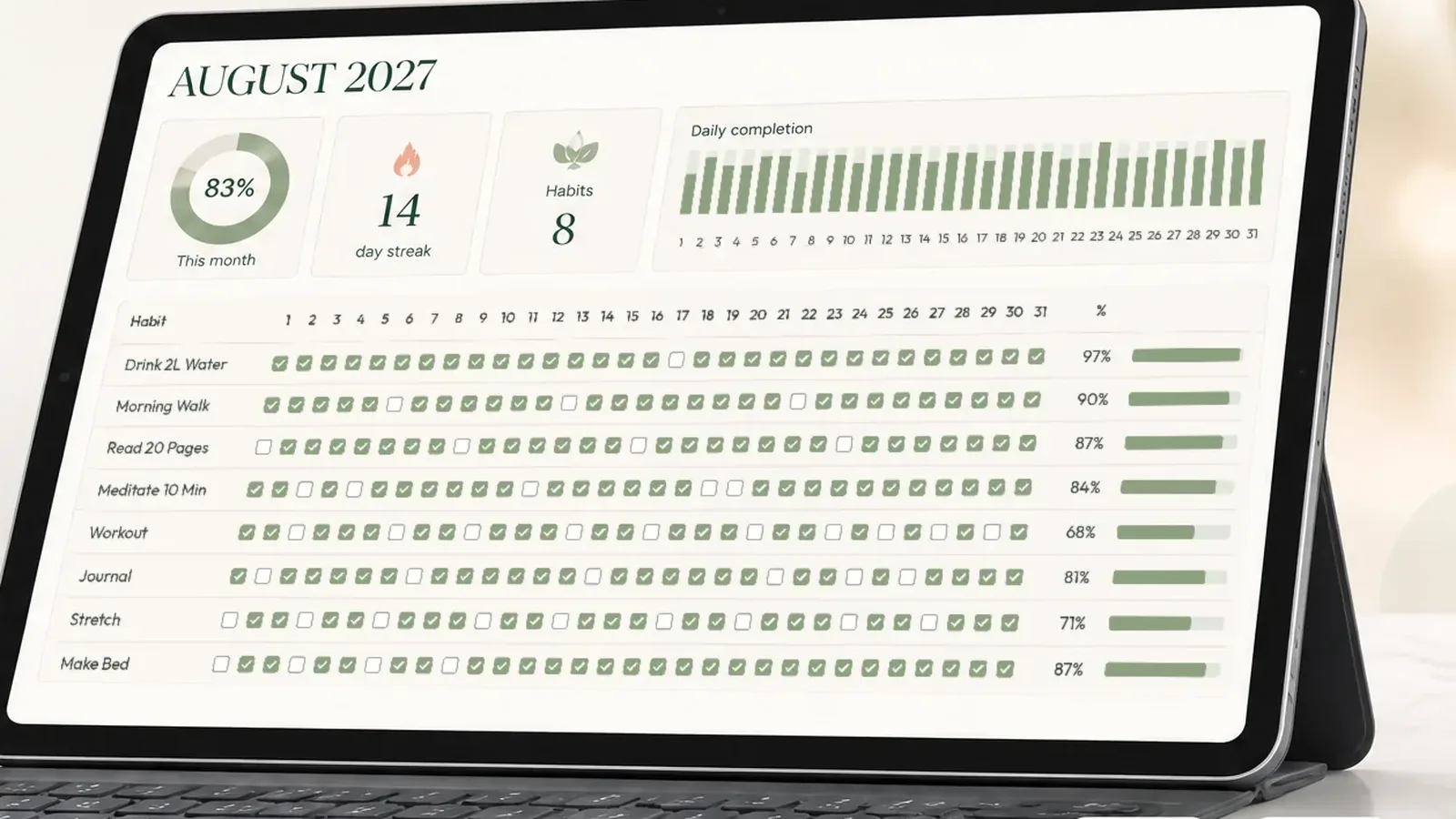
The checker reports potential issues for the workbook and versions you select. Review the specific warning, then check whether the part you need still works. Microsoft's guide to saving an Excel workbook for compatibility with earlier versions gives the current steps. The habit tracker spreadsheet overview shows a month grid with check-offs and a separate score.
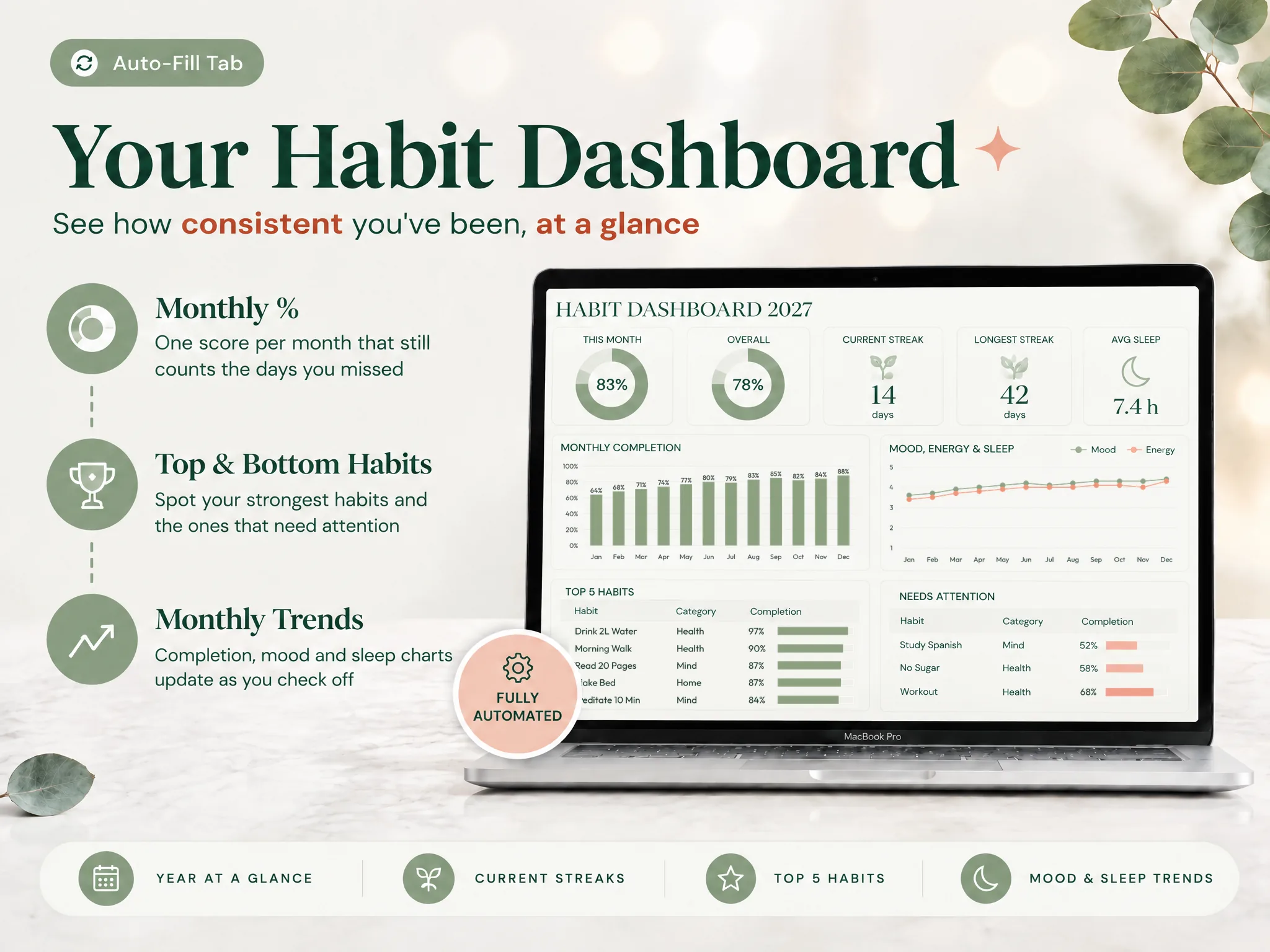
This is a product dashboard preview. It does not show the result of opening the workbook in an older Excel release.
If the dashboard is limited, you can choose a simpler tracker built for the features your app has, or use a different spreadsheet app if that fits your workflow. Keep your entries in one copy while you decide; don't keep editing files that may no longer calculate as expected.
What Makes a Tracker Easier to Return To?
A tracker is easier to return to when the daily check-off is simple and one missed day leaves the rest of the month intact. You can use a native checkbox when your Excel version supports it, or choose a plain input that your workbook can count.
Start with a few habits and one month. Confirm that the month total changes when you check a box. Compare the setup, monthly totals, and what happens after a miss before you commit to a file.
The point is to choose a file you can keep opening. A perfect dashboard is not useful if it does not work in your version or if every check-off takes too much effort.
Why Trust This Article
Cosmo Suite makes the Ultimate Habit Tracker and has a commercial interest in the spreadsheet. On 19 Oct 2026, we checked Microsoft's pages on in-cell checkboxes, Office version details, supported Excel file formats, and Compatibility Checker steps. We did not test the product workbook across Excel versions because the delivered .xlsx file was unavailable. Read about the team and the editorial policy for how product content is handled.
Before using any habit tracker, test a copy in your own Excel version.
Where the Ultimate Habit Tracker Fits
The Ultimate Habit Tracker (ultimatehabittracker.site) includes an Excel workbook and a Google Sheets copy. Its published compatibility note names Excel 365 as the target and warns that older Excel versions may have limited functionality, so use the test steps above if you rely on an older release.
The contents list describes 21 tabs across four sections, 12 monthly trackers, a dashboard, Streaks & Comebacks, and an automatic Year in Review. You can start with three habits and set up to 25. One missed day pauses a streak, and two in a row end it; check the product's instructions for the exact rules in your file.
If you want to see the spreadsheet before choosing, review the Ultimate Habit Tracker in Excel and Google Sheets. If you prefer a phone-first check-off, the Google Sheets format may suit you better. The goal is a version and layout that you can open, test, and return to after a missed day.
Frequently asked questions
Does Excel have a built-in habit tracker?
Excel can make a habit tracker from a grid, checkboxes, and formulas. Microsoft 365 also documents in-cell checkboxes. Excel does not provide one universal ready-made habit tracker for every version, so start with a template that matches your installed app and test it before entering a full month.
Which Excel version has in-cell checkboxes?
Microsoft's current help page for Insert > Checkbox applies to Excel for Microsoft 365 and Excel for Microsoft 365 for Mac. It does not list every perpetual or older edition. Check your app's version and confirm the command is present before relying on native checkboxes.
Do Excel checkboxes work on Mac?
Microsoft's checkbox instructions include Excel for Microsoft 365 for Mac. A workbook can still use features that vary by version, so test a copy on the Mac build you plan to use. The .xlsx file format alone does not guarantee that every interactive feature or dashboard behaves the same.
Can an older Excel version open an .xlsx habit tracker?
Excel supports the .xlsx format across several releases, but Microsoft warns that some formatting, data, and features may not transfer between versions or file formats. Open a duplicate, run Compatibility Checker, and test the checkbox, totals, and dashboard before using the workbook as your live tracker.
How do I test a spreadsheet before entering a full month?
Make a copy, check one box, and confirm that the monthly total changes. Then confirm the dashboard reflects that change, save the copy, close it, and reopen it. If a step fails, run Compatibility Checker and keep the original unchanged while you decide whether another version or format fits better.
What if my older Excel version limits the dashboard?
Use Compatibility Checker on a copy and follow the report for the affected feature. If the dashboard still does not behave as you need, use a simpler tracker that your version supports or try the included Google Sheets copy. The Ultimate Habit Tracker's published compatibility note says older Excel versions may have limited functionality.
Sources
- Microsoft Support: Using check boxes in Excel
- Microsoft Support: What version of Office am I using?
- Microsoft Support: Save an Excel workbook for compatibility with earlier versions of Excel
- Microsoft Support: File formats that are supported in Excel
- Cosmo Suite: Ultimate Habit Tracker product contents and compatibility note
Keep reading
Habit Tracking
Habit Tracker Spreadsheet: How to Build One That Survives a Missed Day
Set up a habit tracker spreadsheet in Excel or Google Sheets that keeps counting after a missed day: the layout, formulas, streak rule and what to track.
· 9 min read
Habit Tracking
How to Track Habits in Google Sheets (Without Typing on Your Phone)
Habit tracker Google Sheets setup: a checkbox grid, a month score and a phone shortcut in four steps, plus what one missed day does to your streak.
· 8 min read
Habit Tracking
Habit Tracker Templates That Survive Week 3 (Matched to How You Track)
Habit tracker template checklist: 7 things a template needs to last past week 3, the formats compared on a missed day, and whether free or paid fits you.
· 8 min read
