How to Make a Habit Tracker in Google Sheets
How to make a habit tracker in Google Sheets: set up checkboxes, monthly scores, colors and a one-miss streak formula, with a worked 30-day example.
By Ultimate Habit Tracker by Cosmo Suite · Editorial policy
Published · 9 min read
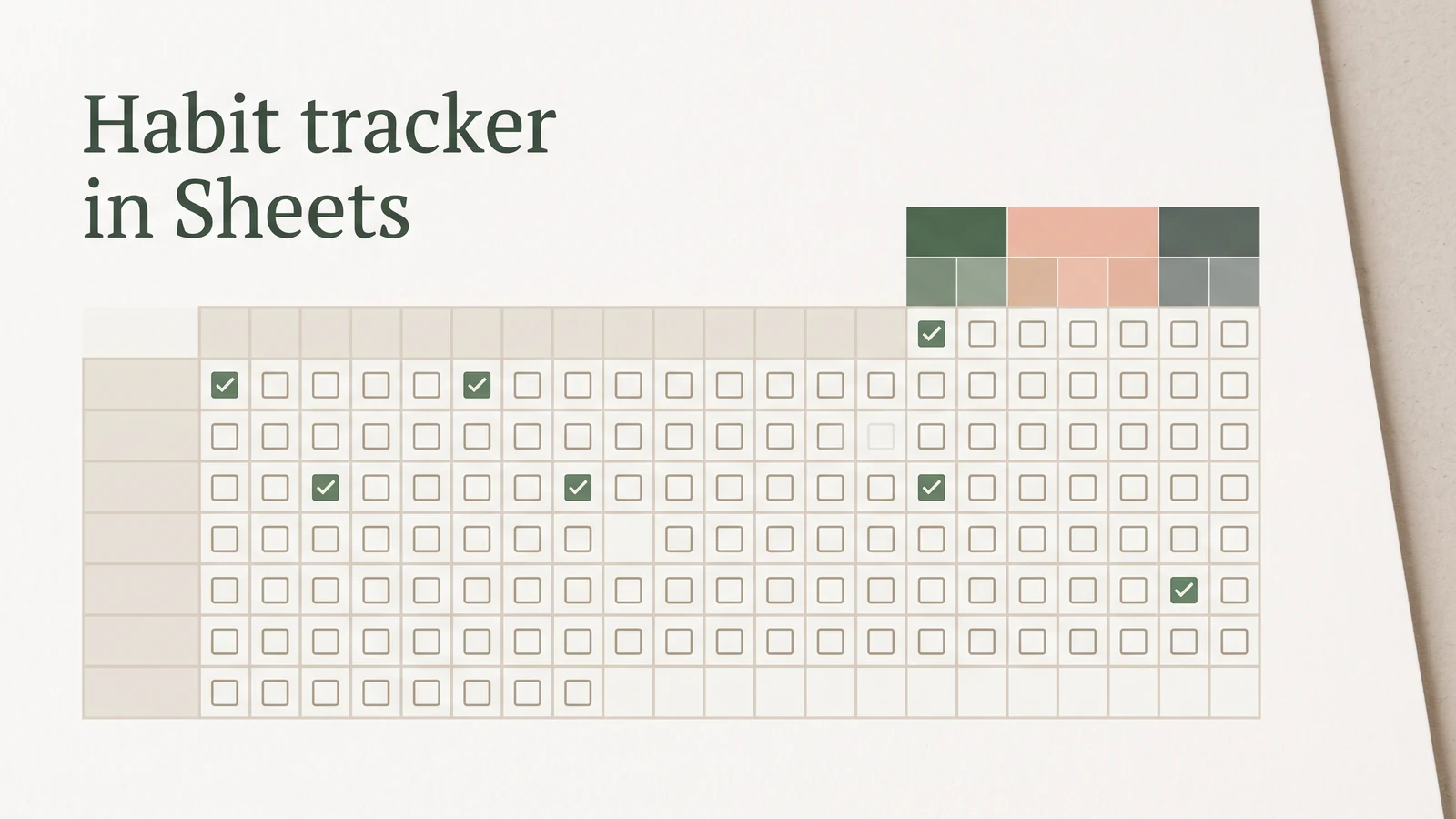
A homemade tracker needs to answer two questions: how many planned days did you complete, and what does one missed day do to your streak? Colored boxes alone cannot show either answer once the month fills up.
To make a usable habit tracker in Google Sheets, create a date row, a short list of habits, and a checkbox grid. Add a COUNTIF formula for each habit’s monthly score, then choose how the sheet should handle one missed day. The example below uses daily check-offs and shows where the formulas need care.
Decide What the Score Means Before You Build
A tracker should show both completion across the month and the current streak. The month percentage answers, “How often did I do this?” A streak answers, “How long is the current run?” They are different measures, so keep them in separate cells instead of trying to make one number do both jobs.
A completion percentage is the number of completed planned days divided by the number of planned days. For a simple daily habit, the denominator is every calendar day in the month. If you plan to track only selected days, such as Monday, Wednesday, and Friday, count only those planned days in the denominator. Otherwise a sheet may report misses on days when you never intended to do the habit.
Before entering formulas, write down three choices: daily or selected-day habit, classic streak or one-miss pause, and one month per tab or a rolling month. These choices determine the ranges and formulas. A short setup note at the top of the sheet can save you from changing the score halfway through a month.
Google Sheets Tracker Setups at a Glance
A month tab with a percentage and a streak shows two different parts of your progress. This example uses a daily habit; selected-day habits need a planned-day count.
| Layout | What it shows | Main trade-off | Best for |
|---|---|---|---|
| Plain checkbox grid | Daily check-offs | No score until you add a formula | A quick visual record |
| Grid plus month percentage | Completion across the month | Does not show consecutive days | Seeing progress after a miss |
| Grid plus percentage and streak | Month completion and current run | Needs a clear missed-day rule | People who want both views |
| One tab per month | One month at a time | You must copy or reset the next tab | A small, repeatable setup |
| One long date list | More flexible history | Takes more scrolling and formula setup | Habits on selected weekdays |
For most first trackers, use a month tab with a percentage and, if you care about it, a streak. A ready-made tracker spreadsheet can save the setup if you would rather spend your time checking off habits than maintaining formulas.
Set Up the Date Row and Checkbox Grid
Put dates across row 1 and habits down column A. For a 30-day month, use B1:AE1 for dates and B2:AE4 for three daily habits. Enter the dates as real date values, then format them to display as day numbers if you want a compact header.
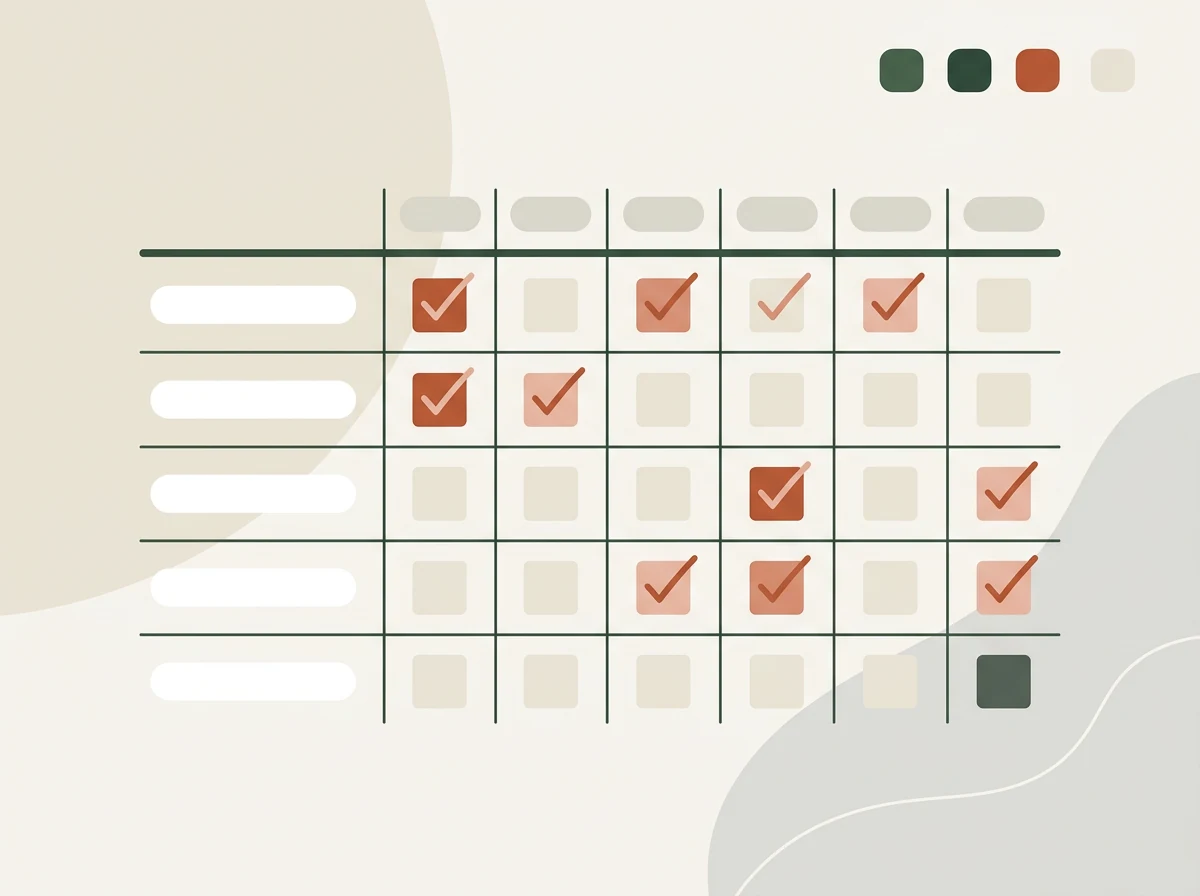
A checkbox grid is a row-per-habit, column-per-date layout with one true-or-false cell for each planned check-off. Select B2:AE4 and choose Insert > Checkbox. Google documents checkboxes as cell values: checked is TRUE, unchecked is FALSE. That means the grid is both the visible record and the input for formulas. Its checkbox help page shows how to add and use them.
Freeze the header row and habit-name column so they stay visible while you scroll: choose View > Freeze and select the first row and first column. Google's freeze rows and columns guide documents those controls. Use a short habit label in column A, such as “Walk 20 minutes,” rather than a goal that is hard to check off consistently.
A month has 28, 29, 30, or 31 days. Do not leave extra checkbox columns in the scoring range. For a 30-day example, the dates end in AE. For a 31-day month, extend the date and checkbox ranges through AF. That one-column difference changes the denominator and can make the percentage wrong.
Add the Monthly Count and Percentage
Use COUNTIF to count checked boxes. In AF2, enter =COUNTIF(B2:AE2,TRUE) to count the first habit’s completed days. Copy it down for the other habit rows. Google's COUNTIF reference describes the function as counting values that meet a condition.
To calculate the month percentage for row 2, use =COUNTIF(B2:AE2,TRUE)/COUNTA(B$1:AE$1). Format the result as a percentage. With 24 checked boxes and 30 dated cells, the result is 24/30, or 80%. Copy the formula down and keep the date-row reference fixed with the $ marks so every habit uses the same denominator.
If the habit is planned for only certain days, add a planned-day row or a separate count of planned dates. Divide checked planned days by planned days, not by every calendar date. For example, a Monday-Wednesday-Friday habit in a 30-day month might have 13 planned dates. If 10 were completed, its score is 10/13, about 77%, not 10/30.
COUNTIF is a spreadsheet function that counts cells matching a condition. Use conditional formatting to give checked cells a color. Select the checkbox range, open Format > Conditional formatting, and set the rule to “Is equal to” TRUE. Google's conditional formatting instructions explain how to apply a rule to a range. Keep the color readable with the checkbox mark; color is a cue, not a replacement for the count.
Add a Streak That Pauses for One Miss
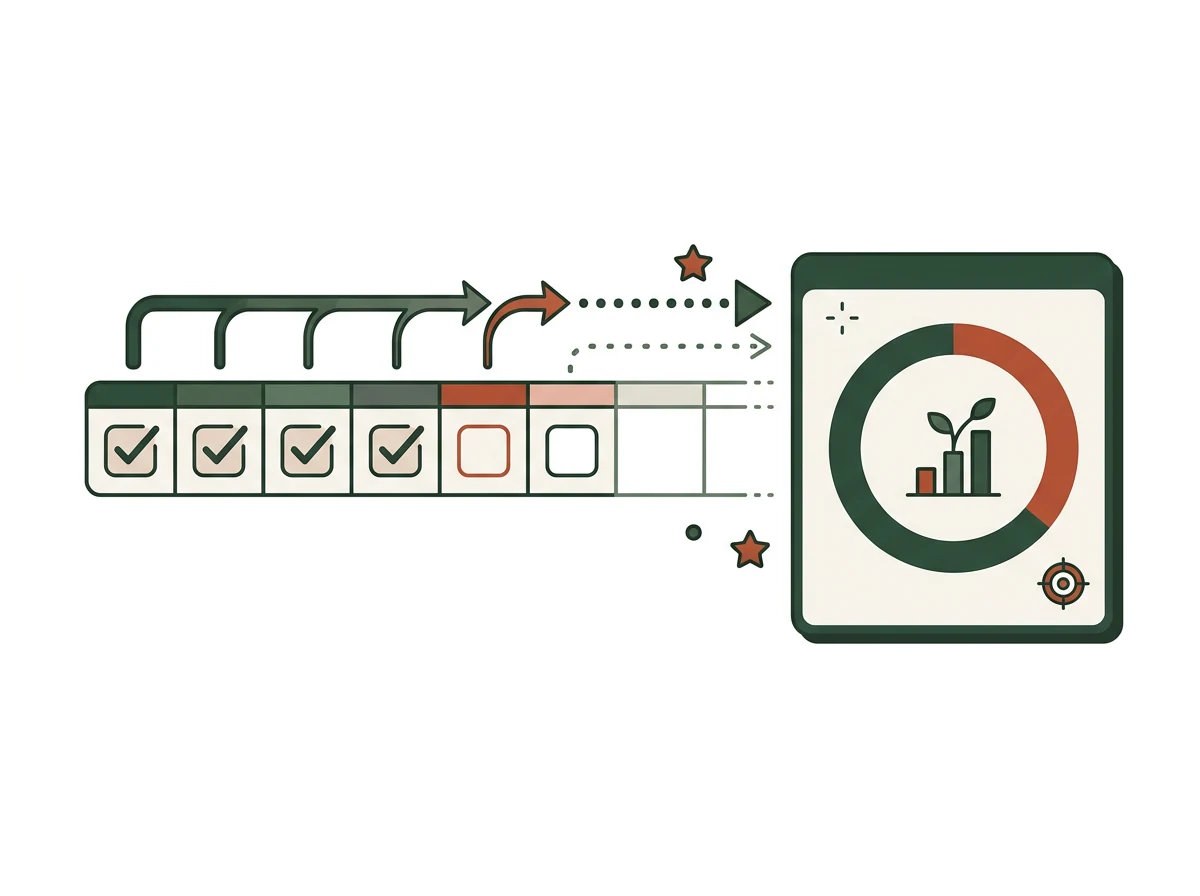
A classic streak resets as soon as one day is blank. If you prefer a one-miss pause, create a second row of formulas under each habit’s checkbox row. This rule is a design choice: it preserves the count across one empty day, then resets after two empty days in a row.
For the first date, put =IF(B2,1,0) in B3. In C3, put =IF(C2,B3+1,IF(AND(B3>0,B2),B3,0)), then copy across the month. The AND check keeps the count only when the previous day was checked and the previous streak was above zero; Google’s AND function reference documents the two-condition logic. In this example, row 2 contains checkboxes and row 3 contains the streak count. Rename the formula row clearly so you do not mistake it for another habit.
Here is what the rule does. A checked day adds one to the prior count. One unchecked day after a check carries the count forward. If another unchecked day follows, the formula sees that the previous day was also blank and resets the streak to zero. When the habit resumes, the counter starts at one. Keep the month percentage beside it because the streak can change while the month’s completed days remain the same.
Test the formula with three short sequences before relying on it: checked-checked should read 1, 2; checked-missed-checked should read 1, 1, 2; and checked-missed-missed-checked should read 1, 1, 0, 1. If any result differs, check that each formula points to the checkbox directly above and the prior streak cell to its left.
A Worked 30-Day Example
[Original data] Suppose you track reading every day for 30 days. You check off 24 days, including a miss on day 12 and two misses in a row on days 19 and 20. These are fictional check-offs for explaining the formulas, not user data or a workbook test.
| Measure | Result | What it tells you |
|---|---|---|
| Month completion | 24 / 30 = 80% | Four out of five planned days were completed |
| Classic streak after day 12 | 0 until the next check-off | One blank day interrupts the run |
| One-miss-pause streak after day 12 | Carries the count across day 12 | One miss does not erase the prior run |
| One-miss-pause streak after days 19 and 20 | 0 on day 20 | Two misses in a row end the run |
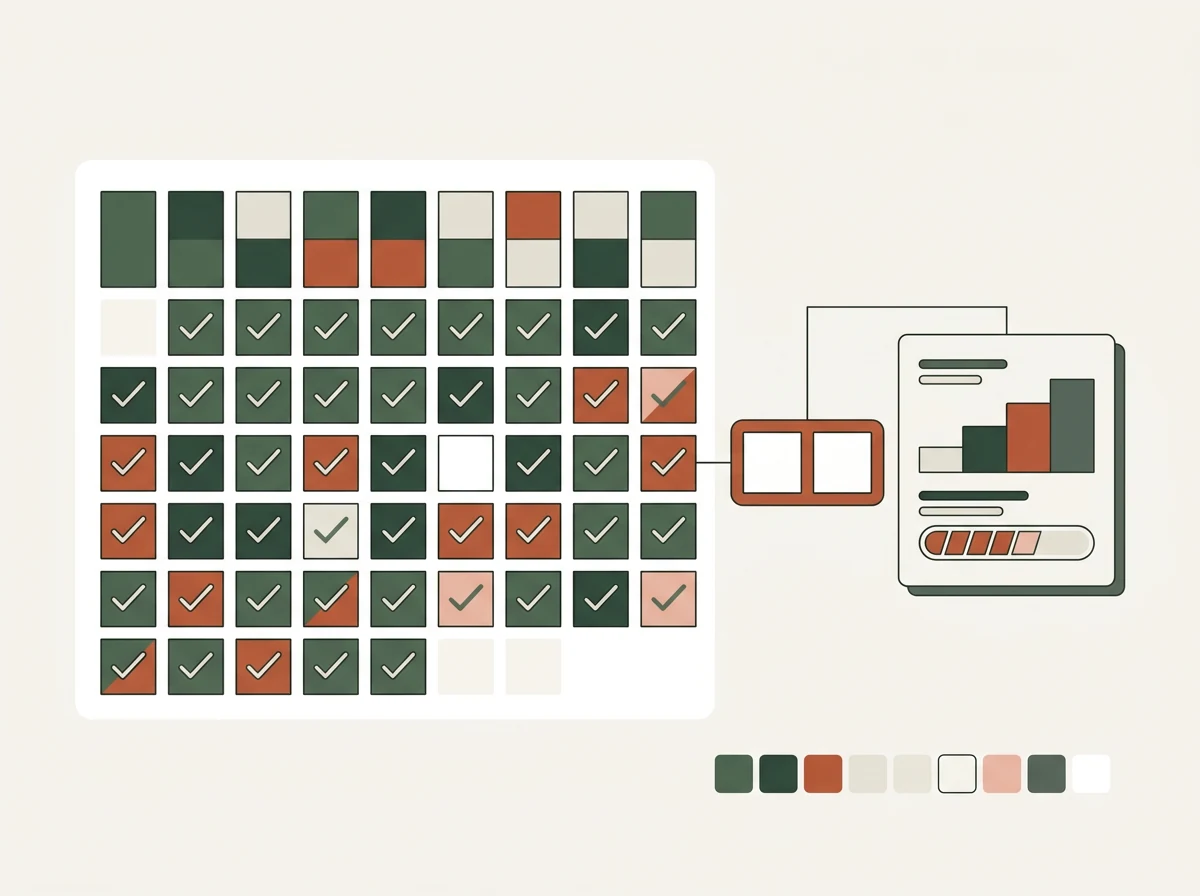
Methodology: the example starts with 30 planned daily check-offs, marks 24 as complete, then applies the two streak rules to the same sequence of empty and checked cells. The percentage stays at 80% regardless of which streak rule you choose. That is why the score and streak should not be combined. The example also shows why a streak formula needs a written rule: two sheets can use the word “streak” while treating the same empty cell differently.
If the sheet stops counting, check the date range first, then check whether the boxes contain boolean values. A typed “x” is text, not TRUE, so COUNTIF(...,TRUE) will not count it. The Google Sheets version guide covers phone check-offs and the basic grid. Here, the focus is on the formulas and their test cases.
Keep the Sheet Easy to Return To
Start with three habits and one month. A grid with five habits and 30 days has 150 checkboxes, which is also 150 possible check-offs. That is arithmetic, not a timed phone test. If the list feels like too much administration, shorten it before adding dashboards or extra tracking fields.
Give the next month its own tab or make a copy of the current tab and clear only the checkboxes. Confirm that dates, formulas, and streak ranges move together. Keep a sample row with a few test values in a separate copy if you need to check a new formula; do not overwrite a month of real entries just to test it.
For a visual comparison of different formats, see the habit tracker template checklist. If you want a completed workbook rather than a DIY sheet, compare its monthly grid with the columns you decided to build.
What Actually Makes the Tracker Useful
A useful tracker gives you a score you understand and a sheet you can reopen after a missed day. Keep the denominator honest. Daily habits use calendar days; selected-day habits use planned days. Keep the measures separate. Monthly completion and current streak answer different questions.
Make the input obvious. A checkbox should be the only daily action unless you have a specific reason to record more. Test with a miss. A tracker is not finished when every cell is colored; it is finished when the numbers still make sense after an empty day and after two empty days.
A spreadsheet lets you choose those rules, but it also means you own the formulas and the next-month setup. If those decisions are the work you want to avoid, a habit tracker with monthly scores and a missed-day rule already set up may be a better fit.
Why Trust This Article
The Cosmo Suite team makes the Ultimate Habit Tracker, so we have a commercial interest in spreadsheet trackers. Google’s checkbox guide confirms that checked cells store TRUE; its COUNTIF reference documents the condition-based count used here. The formulas in this guide apply those documented behaviors to a sample month. The formula examples above are described as examples and were checked against Google’s documentation for checkboxes, COUNTIF, conditional formatting, and frozen rows and columns on 14 November 2026. The 30-day check-offs are fictional and calculated for explanation; we did not run a device test. Read about the team and our editorial policy, and test formulas in a copy of your own sheet before filling in a month.
Where the Ultimate Habit Tracker Fits
The Ultimate Habit Tracker (ultimatehabittracker.site) is a spreadsheet with Excel and Google Sheets versions. Its contents list says it includes 21 tabs across four sections, monthly trackers, a dashboard, and a Streaks & Comebacks tab. You can set up to 25 habits and pay once. It does not send reminders or notifications.
The main difference from a DIY sheet is setup. You choose the habits and enter check-offs, while the workbook has the month view and missed-day behavior already arranged. Its published rule pauses the streak after one miss and ends it after two in a row. Review the tracker contents and spreadsheet previews to see whether that layout matches your needs.
Build your own if you want to adjust every formula or use a different planned-day score. Use a ready-made spreadsheet if you would rather start with the monthly grid in place. Either way, test one checked box, one missed day, and one new month before depending on the totals.
Frequently asked questions
How do I make a habit tracker in Google Sheets?
Create one row for each habit and one column for each date. Add checkboxes to the grid, then use COUNTIF to count checked boxes and divide by the number of days to get a monthly percentage. Conditional formatting can color checked cells. Start with one month and a few habits so the sheet stays easy to use.
What formula counts checkboxes in Google Sheets?
Use =COUNTIF(B2:AE2,TRUE) to count checked boxes in a row. Google Sheets checkboxes store TRUE when checked and FALSE when empty. Change the range to match your dates and habit row, then test the formula by checking one box.
How do I calculate a habit completion percentage?
Divide the checked days by the number of days you planned to track. For a daily habit in a 30-day month, =COUNTIF(B2:AE2,TRUE)/COUNTA(B$1:AE$1) counts check-offs and divides by 30 dated cells. Format the result as a percentage.
Can Google Sheets show a habit streak after one missed day?
Yes. A formula can carry the previous streak count across one empty day, then reset after a second empty day in a row. This is a tracker design choice, not a rule Google Sheets applies automatically. Keep a monthly percentage beside it so one gap does not hide other completed days.
How many habits should I put in a spreadsheet tracker?
Start with three habits you can describe as a clear action. A short list keeps the daily check-off quick and gives you room to see whether the layout works. Add another row only when you are regularly opening the sheet and the current habits still fit.
Can I use the same habit tracker in Excel?
The basic grid and COUNTIF idea work in spreadsheet apps, but checkbox features differ by version. Excel for Microsoft 365 documents in-cell checkboxes; older versions may have limited functionality. Test a copy of the workbook in the exact app you use before relying on it.
Is it easier to build a habit tracker or use a template?
Building one is useful if you want to choose every column and formula yourself. A template saves setup time and may include a dashboard or streak rules already. Compare the daily check-off, month score and missed-day behavior before you choose.
Sources
- Google Docs Editors Help: Add & use checkboxes
- Google Docs Editors Help: COUNTIF
- Google Docs Editors Help: Conditional formatting
- Google Docs Editors Help: AND function
- Google Docs Editors Help: Freeze, group, hide, or merge rows & columns
- Cosmo Suite: Ultimate Habit Tracker contents and compatibility note
Keep reading
Habit Tracking
How to Track Habits in Google Sheets (Without Typing on Your Phone)
Habit tracker Google Sheets setup: a checkbox grid, a month score and a phone shortcut in four steps, plus what one missed day does to your streak.
· 8 min read
Habit Tracking
Habit Tracker Spreadsheet: How to Build One That Survives a Missed Day
Set up a habit tracker spreadsheet in Excel or Google Sheets that keeps counting after a missed day: the layout, formulas, streak rule and what to track.
· 9 min read
Habit Tracking
Habit Tracker Templates That Survive Week 3 (Matched to How You Track)
Habit tracker template checklist: 7 things a template needs to last past week 3, the formats compared on a missed day, and whether free or paid fits you.
· 8 min read
